
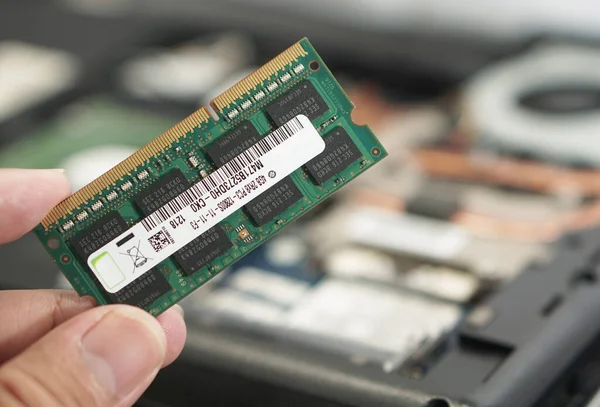
RAM stands for Random Access Memory. It is a type of short-term memory that stores data and instructions that your computer is actively using. It is often said that more RAM equals better multitasking, but that rule comes with limits. This article covers everything you need to know about RAM.
RAM Explained Simply
Imagine you are sitting in an office working on a complex web design project.
The Hard Drive (or SSD) is the giant filing cabinet in the corner of the room. It holds every document, photo, etc. However, walking over to it, finding a file and bringing it back takes time.
The RAM is your actual desk or workbench. When you want to work on a file, you take it out of the filing cabinet (the SSD) and place it on your desk (the RAM). The bigger your desk, the more documents you can spread out and work on simultaneously without having to walk back to the filing cabinet.
The Processor (CPU) is you, sitting at the desk, actively reading and writing the documents.
What is RAM, Really?
RAM is super-fast, temporary storage hardware. When you start your computer and open applications, the operating system and programs load the data and instructions they need from your storage into RAM.
Why? Because accessing data from an SSD or HDD is incredibly slow compared to the blazing speeds a processor requires. RAM bridges that gap. However, RAM is volatile. This means the moment your computer loses power or shuts down, the desk is wiped completely clean.
Different Types of RAM
When most people think of RAM, they picture the long, rectangular sticks (like DDR4 or DDR5) that snap into a desktop computer motherboard. But memory scales drastically depending on the hardware:
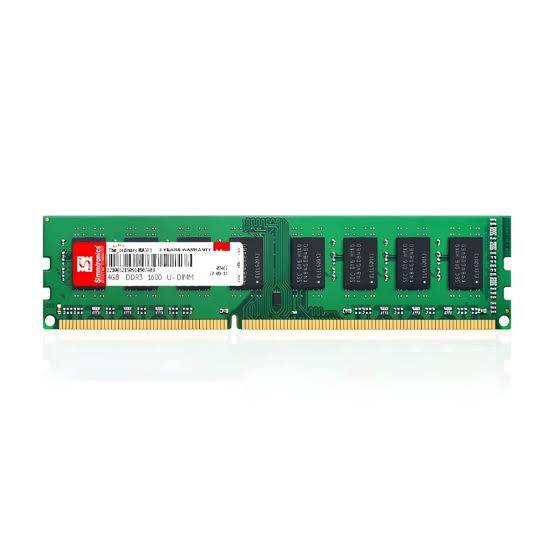
Desktop & Laptop RAM: Modular, upgradable sticks that prioritize massive capacity (usually 8GB to 64GB) to handle heavy multitasking, hundreds of browser tabs, and complex software. That description still fits most desktops, but it’s getting less true for laptops every year — most modern MacBooks, many thin-and-light Windows ultrabooks, and nearly all Chromebooks now solder RAM directly onto the motherboard, trading upgradability for a slimmer design. Apple Silicon Macs take this a step further with “unified memory”: one pool of RAM shared directly between the CPU and GPU, the same basic idea used in the Raspberry Pi described below.
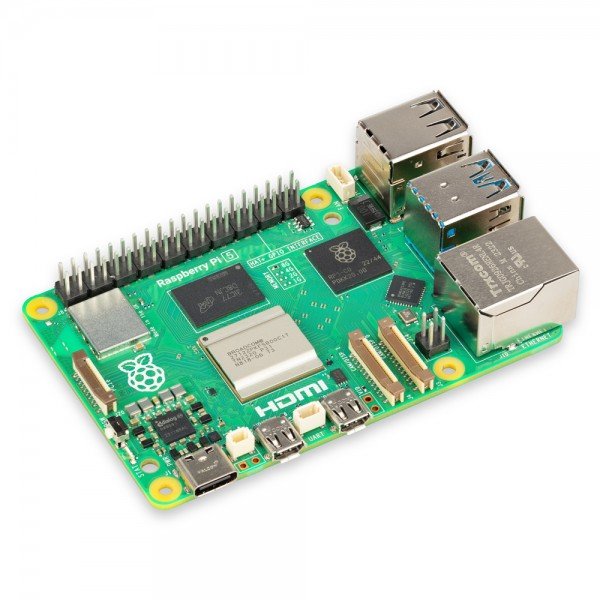
Single-Board Computers: Devices like a Raspberry Pi do not have removable RAM sticks. They use a unified, soldered memory chip that is shared directly between the CPU and the graphics processor. It is highly efficient for running background services, headless audio scripts, or automation platforms.
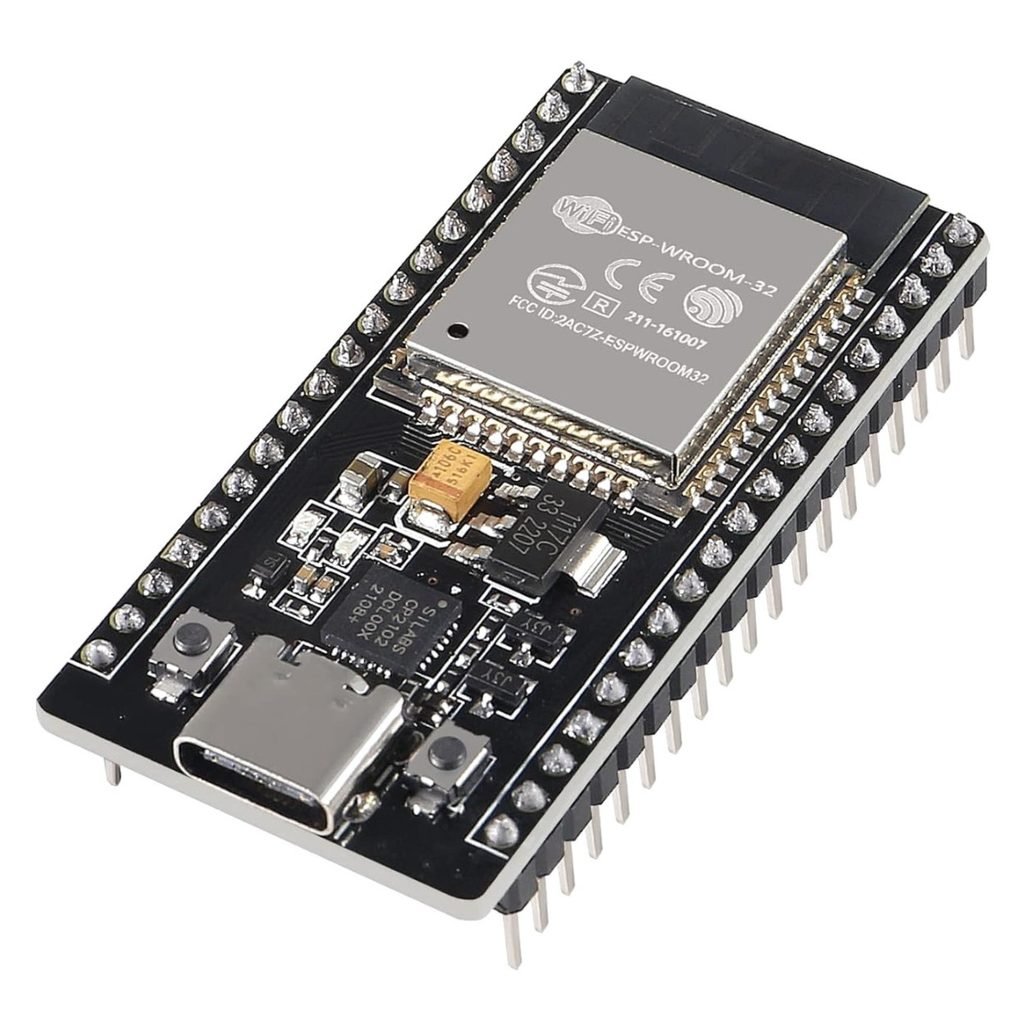
Microcontrollers: On tiny development boards like an ESP32 or Arduino Nano, RAM isn’t measured in gigabytes; it is measured in kilobytes. This embedded Static RAM (SRAM) is incredibly small but perfectly optimized to run continuous logic loops, read sensor data, or drive physical motors without the heavy overhead of a full operating system.
Specs That Actually Move the Needle
Capacity gets all the attention, but it isn’t the only spec that determines how fast your memory actually feels in practice.
Speed and Timings: RAM speed tells you how quickly it can move data. You may see RAM advertised as DDR5-6000, where the 6000 means it can handle about 6000 million data transfers per second (6000 MT/s).
You may also see CL30 next to the speed. This is a timing that tells you how quickly the RAM can respond to certain requests. In general, faster RAM with lower timings can improve performance in things like gaming and content creation, although the difference depends on the rest of your computer and what you’re doing.
Manufacturers sometimes write “DDR5-6000MHz” on the box because people are familiar with MHz as a measurement of speed. Technically, DDR5-6000 is rated at 6000 MT/s, while the underlying memory clock is 3000 MHz.
Dual-Channel (and Quad-Channel) Configurations: Using two compatible RAM sticks in a dual-channel configuration allows the memory controller to use two memory channels, increasing available memory bandwidth compared with a single-channel setup. This can make two 8GB sticks faster than a single 16GB stick in workloads that benefit from the extra memory bandwidth.
Whether you actually achieve the benefits of dual-channel memory depends on your CPU, motherboard, slot placement, and several other factors.
VRAM and System RAM: If you game or edit video, you’ve probably seen “VRAM” mentioned alongside system RAM. Dedicated graphics cards usually have their own VRAM dedicated to textures and rendering, while integrated GPUs typically share system RAM with the CPU. For dedicated setups, it’s physically separate from your system’s main RAM — having plenty of one doesn’t make up for a shortage of the other.
The Truth About RAM
Most tech articles just tell you to “buy more RAM.” But to truly understand system performance, we need to look at the advanced software side.
1. Is “Unused RAM” actually “Wasted RAM”?
Many users panic when they check their system monitor — Task Manager on Windows, Activity Monitor on macOS — and see that 80% of their memory is being used while the computer is just sitting idle (doing nothing). But in modern computing, this is entirely intentional. The adage “unused RAM is wasted RAM” is a core philosophy of modern memory management.
Operating systems intentionally use your free RAM to cache files and background libraries that you might need soon. If you suddenly launch a heavy application that needs that physical space, the operating system instantly drops the cached data and hands the memory over to your new app. High RAM usage at idle usually just means your system is actively optimizing itself to make your daily tasks feel faster.
2. Why do some devices feel faster with less RAM?
A device with 4GB of RAM can sometimes feel faster and less laggy than a different device with 8GB. RAM capacity isn’t the only factor determining performance. CPU, storage, software optimization, thermals, memory speed, and workload can all matter. Software bloat and optimization are a big part of the story: factory operating systems are notorious for filling up memory with unnecessary background applications, tracker apps, and carrier services. This is one reason a lightweight operating system or software setup can make older hardware feel more responsive.
But bloatware isn’t the whole picture. RAM speed, the underlying processor, and storage type (eMMC versus UFS versus NVMe) often matter more than capacity alone. A phone with 4GB of fast RAM, a capable chip, and quick storage can easily feel faster than an 8GB device saddled with a weaker processor and sluggish storage. Capacity is just one ingredient in a much bigger recipe.
3. What happens when you completely run out of RAM?
If the programs you’re running need more than your available physical RAM, your computer doesn’t necessarily crash right away — thanks to virtual memory. Virtual memory is the system that gives every running program its own private address space and maps it onto physical RAM; it’s running at all times, not just in emergencies.
Swap space (called a “page file” on Windows) is what virtual memory reaches for once physical RAM is full. It’s a reserved area on your hard disk or SSD that acts as overflow: the operating system can move less-active memory pages from RAM to storage, freeing up physical RAM for your active tasks.
This buys you breathing room, but it isn’t a guaranteed save. Reading and writing to a disk is far slower than accessing RAM, which is why heavy swapping is usually the reason a computer suddenly freezes or stutters when switching between programs — and if swap itself fills up, things do fail: Linux’s “OOM killer” starts closing processes to free memory, while Windows and macOS apps can crash outright.
Smartphones use different memory-management strategies. Android commonly uses zRAM to compress inactive memory in RAM, while some devices may also use storage-backed swap. When memory pressure becomes high, the system may also terminate background apps. On desktop or mobile, heavy swapping generates additional storage writes and can contribute to SSD wear over time, although the practical impact depends heavily on the workload and the drive’s endurance.
4. Why does my computer slow down the longer I leave it running?
Sometimes the culprit isn’t your hardware at all — it’s a memory leak. This happens when poorly written software allocates memory for a task but fails to release it after the task is finished. The process continues holding that memory, making it unavailable for other uses. Over hours or days, small leaks accumulate, and an app can end up hoarding gigabytes of RAM it isn’t actually using for anything.
Unlike the OS caching behavior described earlier, this isn’t intentional or helpful — it’s a bug. The usual fix is simply closing and reopening the offending app, or restarting your device, which forces the OS to reclaim all of that memory at once. If a specific app’s memory usage climbs steadily the longer it stays open, a leak is a likely explanation — and no amount of extra RAM fixes it permanently, it just takes longer to become noticeable.
How Much RAM Do You Actually Need?
More memory does not automatically mean a faster computer. If you only ever use 10GB of RAM for your daily workflow, upgrading from 16GB to 32GB will not improve your speeds at all — it just gives you a bigger desk that you aren’t utilizing.
4GB – 8GB: Suitable for basic web browsing, word processing, and lightweight media consumption.
16GB: A common sweet spot for many users. It handles everyday multitasking, modern gaming, development, and many demanding workloads comfortably.
32GB+: For professionals or gamers — 4K video editing, running complex virtual machines, massive database management, or high-end gaming.
ECC (Error-Correcting Code) Memory: Often found in workstations and servers, ECC memory can detect and fix small data corruptions on the fly — reliability that’s worth the added cost for systems where memory reliability is especially important.
Get Your Ram!
I researched and picked the top rated RAM so you don’t have to!
(affiliate links)
XPG ADATA GAMMIX D30 DDR4 8GB-https://link.amazon/B0c89bBQp
Corsair Vengeance LPX 16GB-https://link.amazon/B01q6M1zk
Yeah, I didn’t mention any DDR5 RAM as the prices are kidney touching💰;
but if you are ultra rich💵 here’s the link
(affiliate links)
Patriot Memory Viper Venom DDR5 32GB-https://link.amazon/B0c6vPtOb
Patriot Memory Viper Venom DDR5 RAM 16GB-https://link.amazon/B01GuZfF5
You might think how selfish the admin is for putting random links just to make money, and that is a very natural thought. Just hear me out once: the products listed here are first handpicked by me, and then I create affiliate links just to earn a little commission to keep this website ad-free.
Conclusion
Understanding RAM is about more than just reading the gigabyte number on a spec sheet. It is about how that memory interacts with your storage drives, how your operating system manages caches, and how efficiently your software runs. Whether you are managing massive DDR5 sticks in a desktop PC or just a few kilobytes of SRAM on a microcontroller, the core principle remains the same: it is the high-speed workspace that brings your digital tasks to life.